
macOS · iOS · iPadOS
Voynich.Files and passwords, encrypted on the device.
Voynich replaces each file and folder with an AES-256-GCM encrypted version, under the same name and path. Its vault holds your passwords, recovery codes and private notes in one encrypted file you put where you like. Both open with one Touch ID prompt. There is no account and no server.

 iPhone and iPad in review

Free on Mac, iPhone and iPad. Pro is a one-time $14.99 unlock, with no subscription. Decryption is never limited.
The Mac download is a notarized app that updates itself, unlocked with a $14.90 licence. It keeps its data separately from the App Store version, so moving between them means restoring with your recovery key.
Features
What it does
The file is replaced, not copied
The encrypted file takes the original's place, in the same folder and under the same name, with no readable copy left beside it. Encrypt a folder and everything inside it is encrypted with it. Renaming a file, or removing its extension, does not confuse the app — it recognises an encrypted file by its contents.
The data is not locked inside the app
The cipher is standard AES-256-GCM and the container format is documented. Your recovery key opens your files and vaults on any computer. Two decryptors ship with the app: a Python script, and a browser page that works offline.
Decrypt without the app — the recovery guidePasswords, codes and private notes
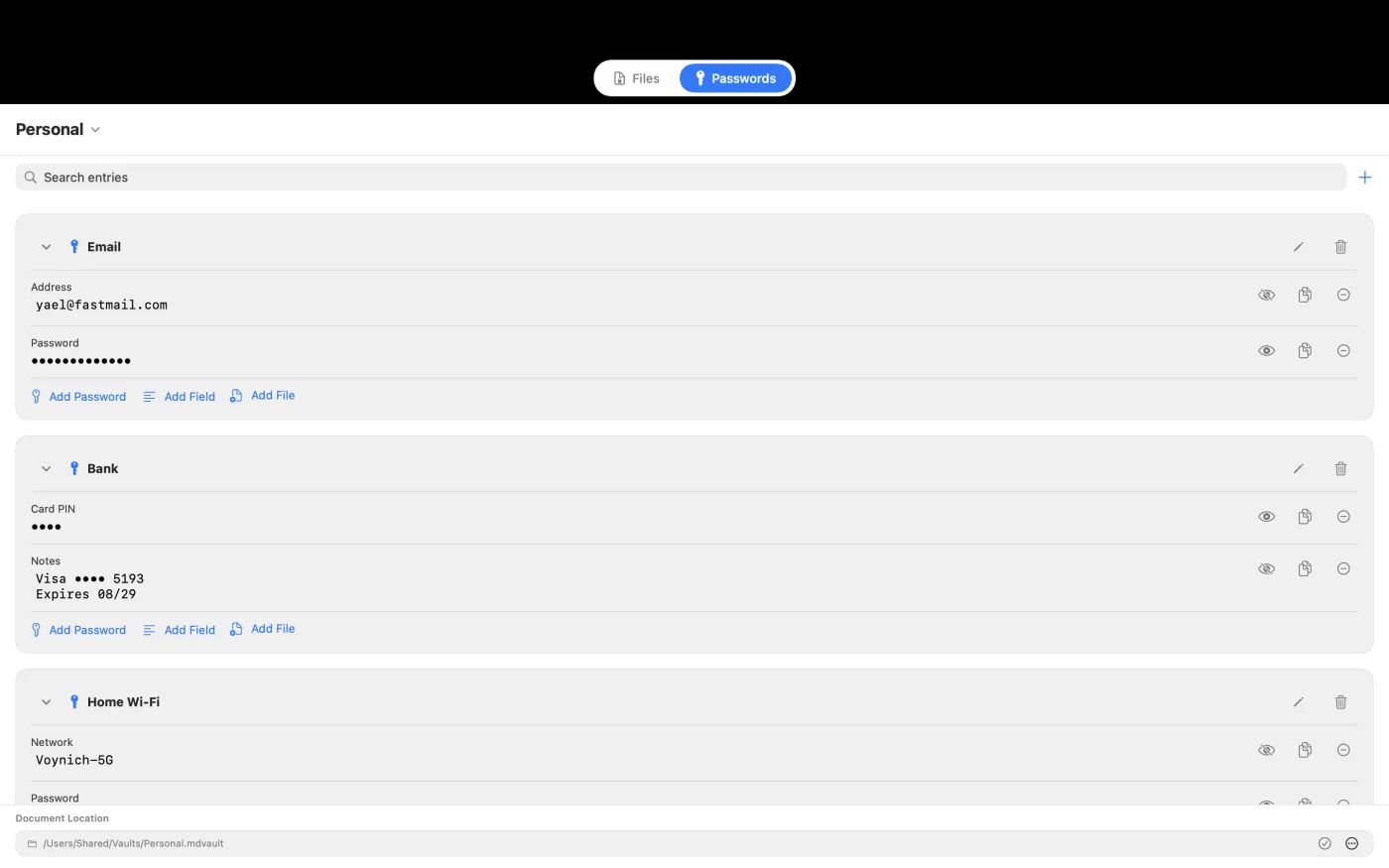
Keep logins, and the things people leave in a note because there is nowhere better: recovery codes, licence keys, account numbers. Each entry takes masked password fields and multi-line text. The vault is one encrypted file, and you choose where it lives.
Watched folders
Mark a folder and new files in it are encrypted in the background, on their own. Real time on Mac; on app open for iPhone and iPad. A short delay confirms the write finished first.
The key never leaves the device
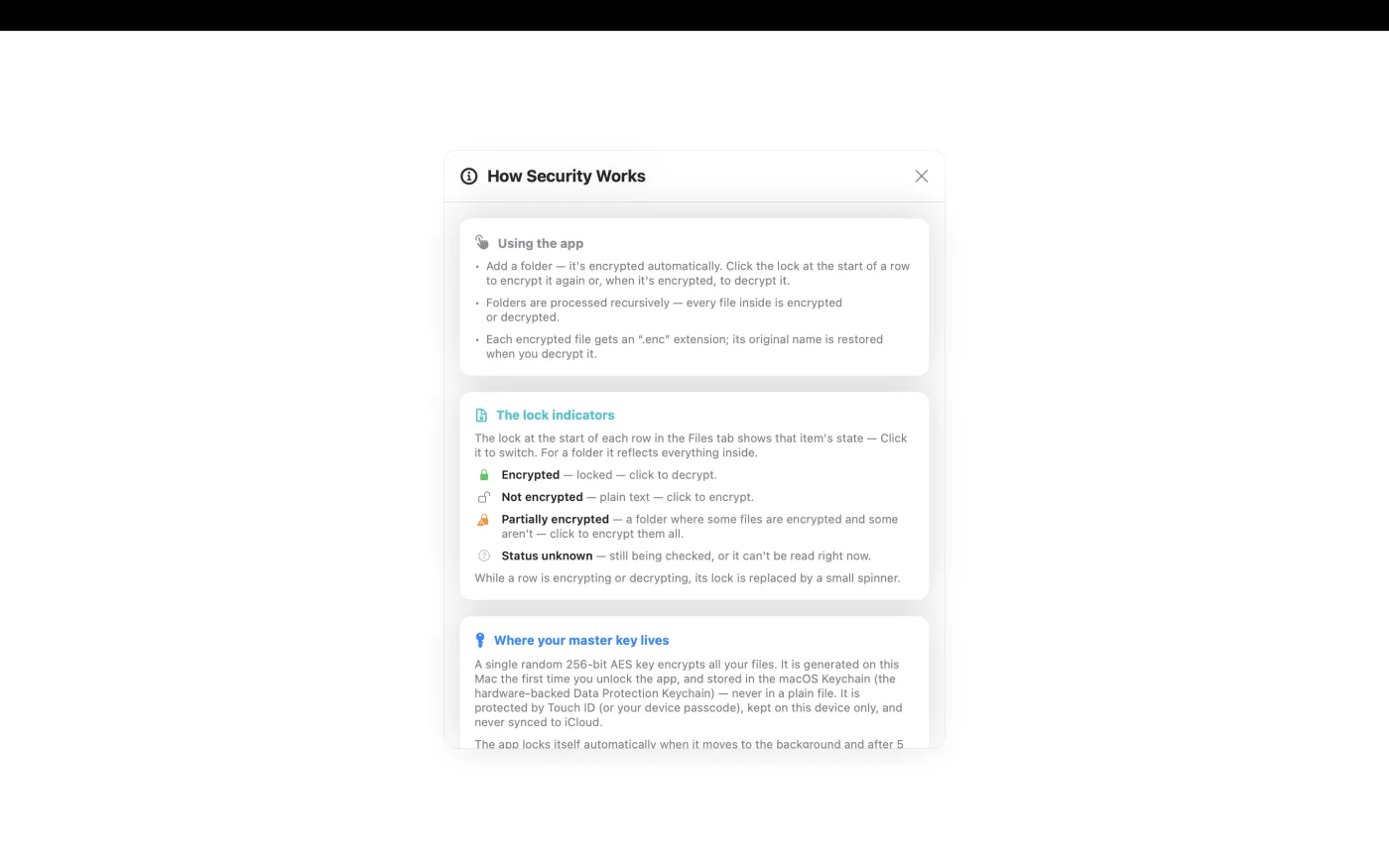
A random 256-bit key is generated on the device and held in the biometric-protected Keychain. It is marked this-device-only and never synced to iCloud. Reading it takes Touch ID, or the device passcode where biometrics are unavailable.
Two recovery paths
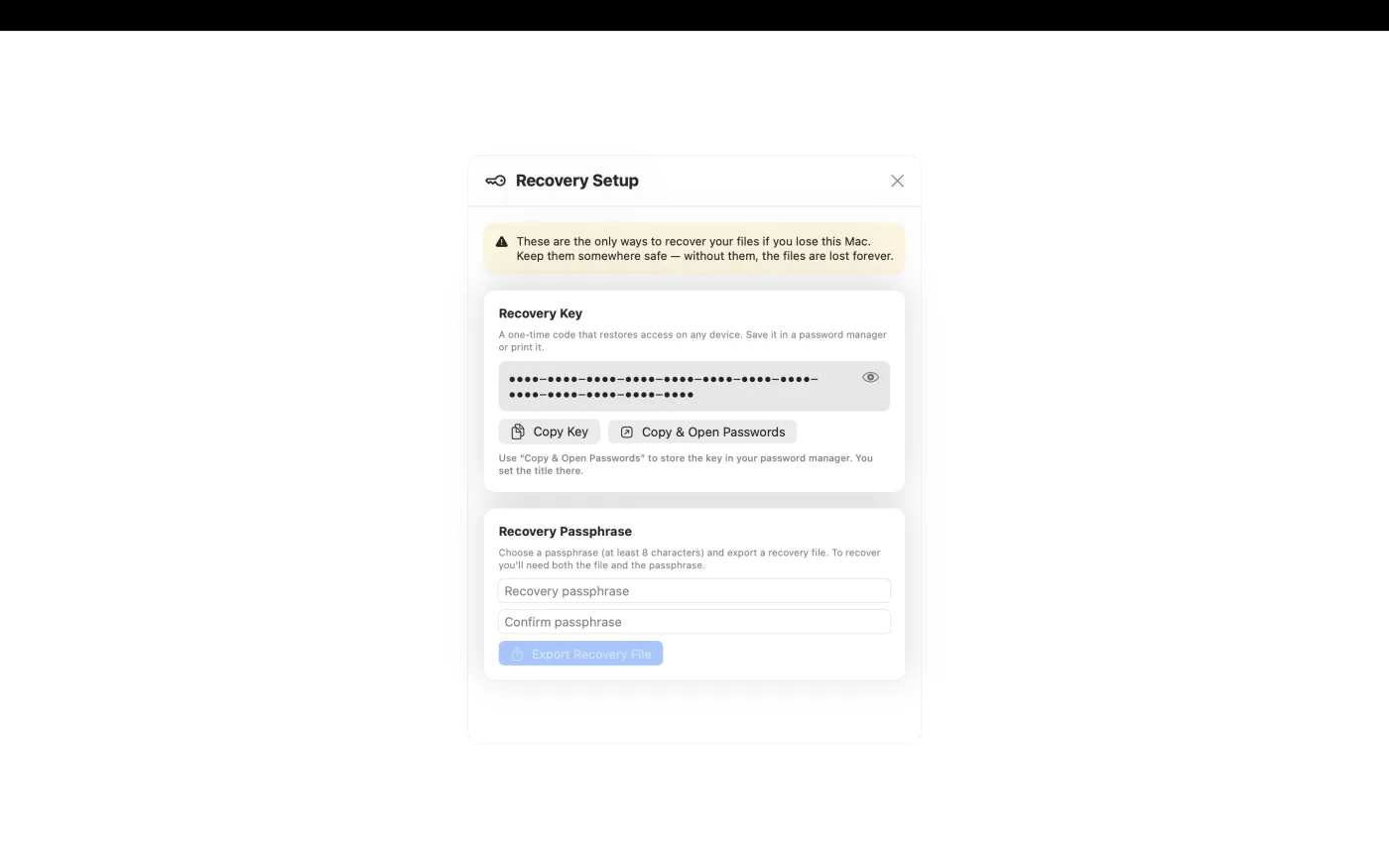
A one-time recovery key restores access on another device, and decrypts in the external tools. Or export a recovery file wrapped with a passphrase, through PBKDF2-HMAC-SHA256 at 600,000 iterations. Recovery then needs both parts.
Where the name comes from
The book nobody could read
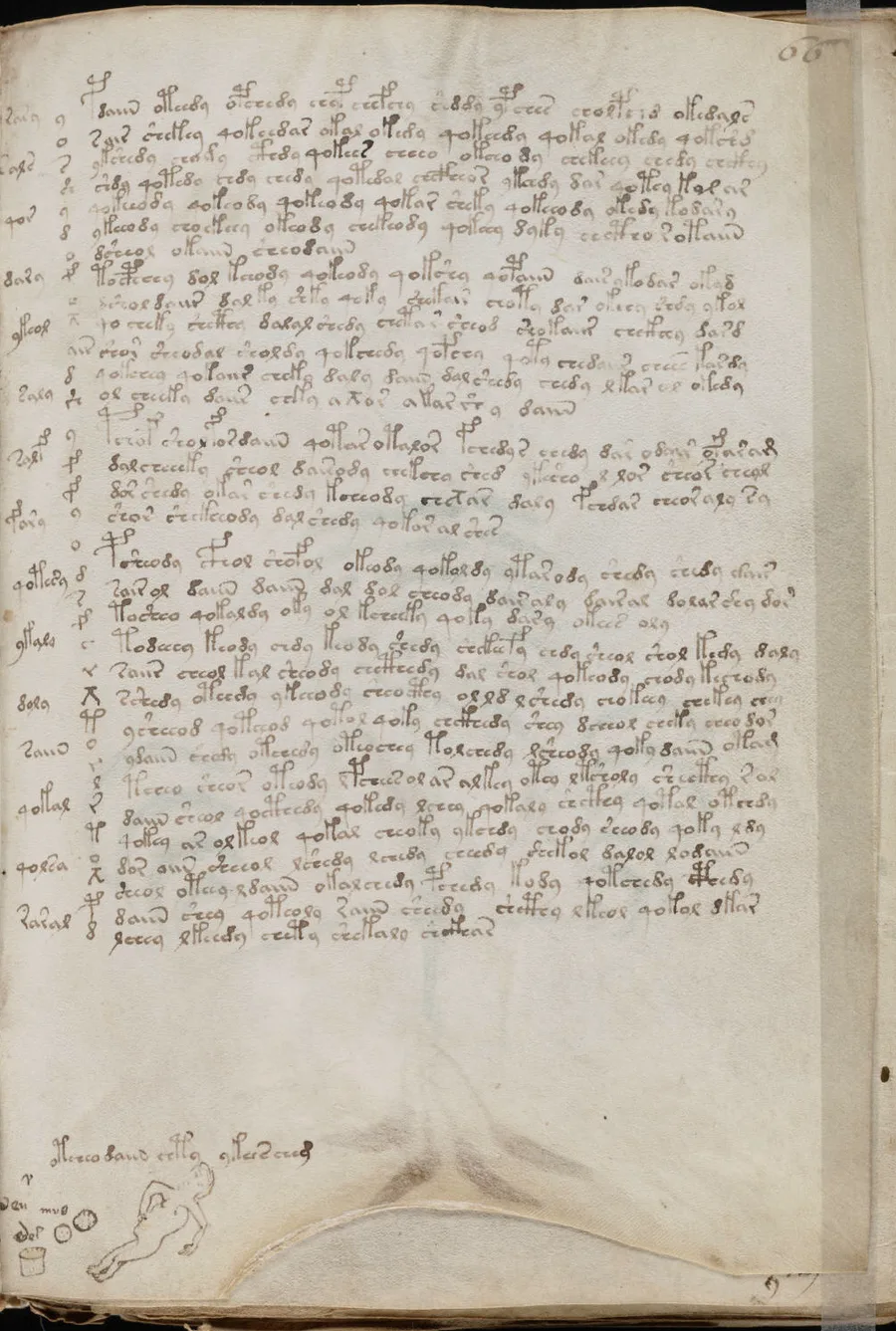
The Voynich Manuscript is a 15th-century codex written in a script no one has read. Cryptographers, codebreakers and linguists have worked on it for six hundred years without producing a single sentence. It is the most famous encrypted book in the world, and it has never been broken.
The app is named for that secrecy. The manuscript's secret is lost even to whoever wrote it. Voynich keeps yours from everyone but you: the cipher is standard, the format is documented, and your recovery key always opens it.
Demos
The app running on Mac and iPhone
Screenshots
The main screens
Setup
From first launch to a locked folder and a filled vault
Files and folders
-
Unlock the app
Touch ID or Face ID unlocks the vault on first launch, and the app generates your 256-bit key into the Keychain. Without biometrics, it asks for the device passcode instead.
-
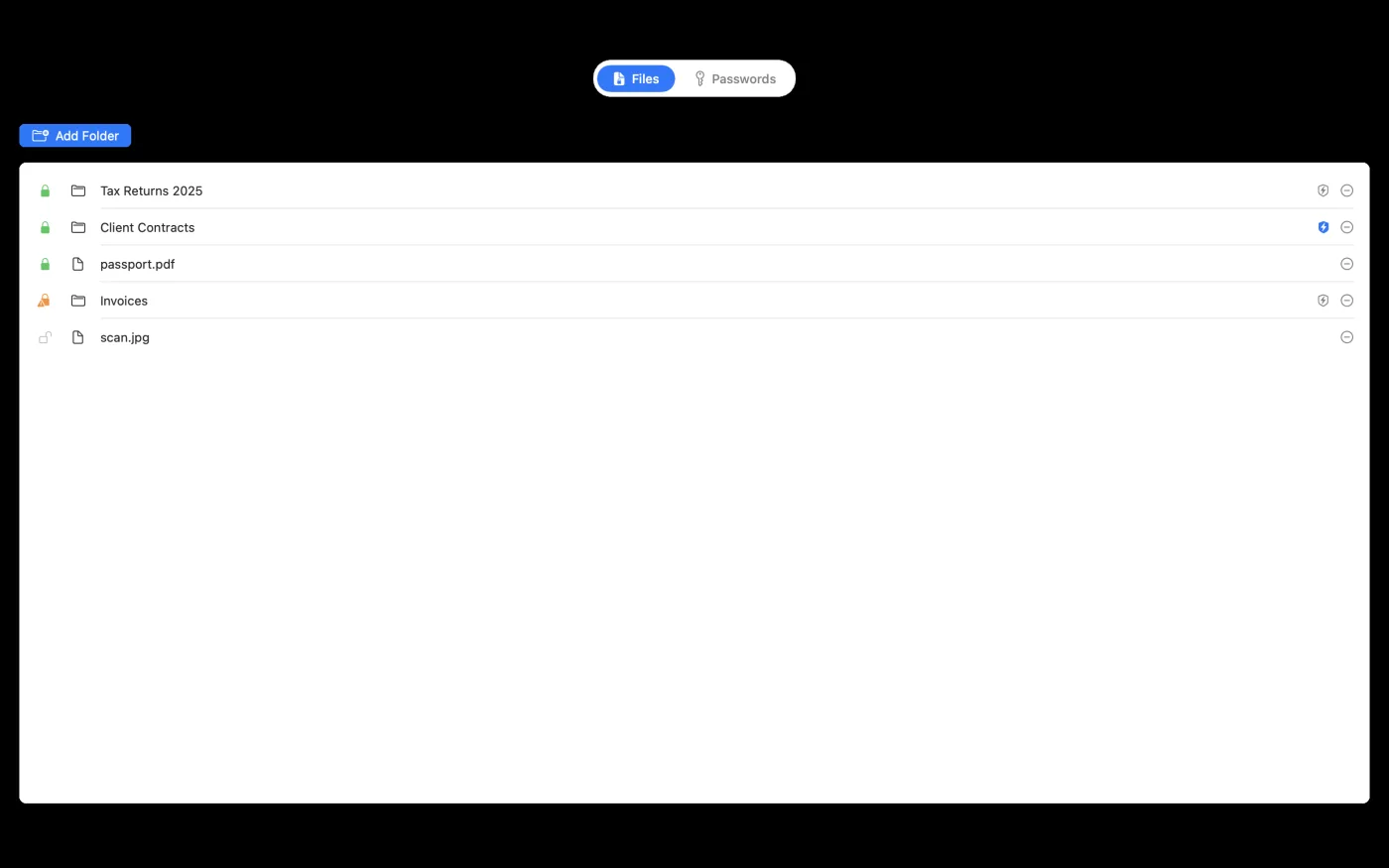
Add a file or a folder
Pick items from the file picker. They stay in the list across relaunches through security-scoped bookmarks, and each row shows whether it is locked, unlocked or partially locked.
-
Encrypt, or let a watched folder do it
Encrypt replaces each item where it sits, leaving no second copy. Mark a folder as watched and anything new dropped into it is encrypted on its own, in the background, without opening the app on Mac.
-
Save your recovery key
The one-time recovery key is shown once, under Recovery. Keep it somewhere safe. It restores access on a new device, and it opens your files on any computer through the Python script or the offline browser page, without Voynich installed.
The vault
-
Open the vault and add an entry
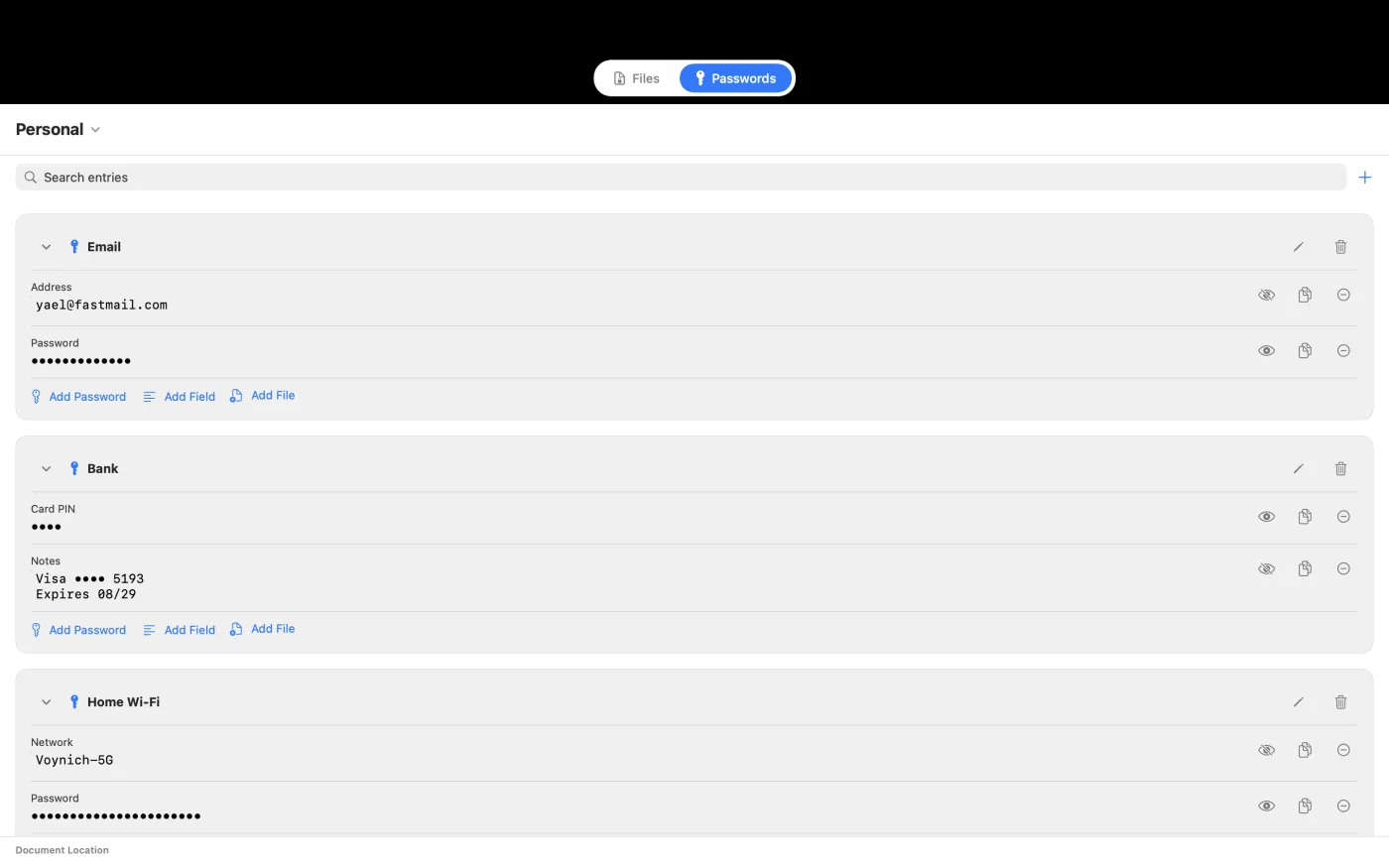
The Passwords tab opens with the same unlock you already did. An entry starts with a title, and the vault is created the first time you save one.
-
Put more than passwords in it
Each entry takes masked password fields, revealed or copied on demand, and multi-line text fields for recovery codes, licence keys, account numbers or a private note. Everything saves as you type.
-
Decide where the vault file lives
The vault is a single encrypted file. “Change Location…” moves it to any folder you choose, including a USB drive or your own cloud. It stays encrypted wherever it sits.
More from BD TECH
Three more Mac utilities from the same desk
The developer behind Voynich makes a handful of narrow Mac apps. These are the ones that tend to end up on the same machine.
-
RSync Pro
macOSKeeps a folder mirrored to a second disk, or to a server of your own over SSH, the moment a file changes — encrypted containers included, since they are ordinary files. Real rsync, driven from a Mac window.
Mac App Store -
Snippet
macOS · iOSThe text you send over and over, on a keyboard you can reach inside any app and in the Mac menu bar. Everything is stored encrypted and synced across your devices.
Mac App Store -
TabBar
macOSA tab bar for Word, Excel and PowerPoint on the Mac, so a dozen open documents stop being a dozen windows.
tabbar.io
Support
Questions, feedback, or help with setup
Email reaches the developer directly.
support@bdtech.app